

Site Search
946 results for access web MAKEMUR.com can you pay to get out of jail early onion view quick anonymous safe service
- [pdf] FeelingBetterNow
- Benefits and Key features
-
Tax Slips – What you need to know
It is tax time, and clients should be receiving tax slips and deposit receipts by now. Check out the Tax Slips: A Quick Reference Guide for a taxation breakdown by product and Insights into Non-Registered Taxation for a detailed explanation on investment income, and why T3 tax slips are generated on non-registered segregated funds.
Clients who registered for tax slips on Equitable Client Access before December 31, 2022, can download or print tax slips quickly and easily from their Equitable® Client Access Inbox. Advisors can download tax receipts on Document Lookup on EquiNet®.
For questions about contribution limits, Retirement Income Fund minimums and Canada pension maximums check out Equitable Life®’s helpful 2023 Facts & Figures guide.
Equitable's Advisor Services Team is available Monday to Friday, 8:30 a.m. – 7:30 p.m. ET at 1.866.884.7427 or by email at savingsretirement@equitable.ca. You can also contact your Regional Investment Sales Manager.
® denotes a trademark of The Equitable Life Insurance Company of Canada.
Posted: February 15, 2023 - COVID-19 Group Benefits FAQ
- About
-
Enhancing the Transfer Process: Equitable's New Signature Guarantee Service
Equitable® is making transfers even easier with EZcomplete®.
This enhancement will help advisors and clients by reducing the number of rejections from other institutions that need a signature guarantee. Reducing transfer rejections means less time and effort for advisors, and faster transfers from other institutions.
Signature Guarantees
Equitable will now offer signature guarantees on most transfers requested through EZcomplete.
When is a signature guarantee not available?
• For entity owned accounts
• If a Power of Attorney is signing on behalf of an owner
• If the transferring account has an irrevocable beneficiary
Watch the quick Identity Check with Persona video or read through instructions below.
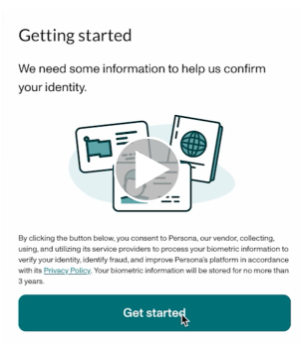
To offer a signature guarantee, Equitable first needs to check the identity of all owners using Persona, a third-party service provider.
The advisor starts by selecting a signature guarantee in EZcomplete. An email link is sent to all proposed owners.
Clients can click the link within the email to Persona's verification process.
They will be prompted to take a picture of their photo ID and a selfie, turning their head slightly left and right by following the prompts.
Their identity can then be confirmed in seconds.
Sending Transfer Forms:
• If all owners' identities are verified, Equitable will send the transfer form with a signature guarantee stamp and the e-signature audit log to the transferring institution.
• If ID verification fails, clients will be prompted to try up to three times. If still unsuccessful, the transfer form and e-signature audit log is sent to the transferring institution without the signature guarantee stamp.
Handling Issues:
• Advisors’ obligations to verify ID is not affected by this process; ID verification is still required.
• If the client times out or loses the email to access Persona, the advisor can resend the link.
• If the client’s name or email changes after ID verification, the advisor will need to redo the ID verification with the updated information to get a signature guarantee.
This update strives to make processes smoother and more efficient for everyone. Just another reason to do business with Equitable. When we work together, success is mutual.
For more information or assistance, please contact your Director, Investment Sales.
Date published: May 7, 2025 -
Show term and critical illness illustrations with ratings
Rating options are now available in term and critical illness web illustrations. When you add a rating, the premium changes so clients can see the difference. This makes it easier to compare options and set expectations early.
What’s new
You can apply ratings to your term and critical illness web illustrations. When you choose a rating, the illustration and report update right away with the new premium.
Benefits
• Clear side‑by‑side comparisons
• Illustrated options better fit client’s needs
• Talk about options with more confidence
How to use the rating feature
1. In the web illustration, go to Personal Information.
2. Select the Ratings checkbox.
• This option also appears when adding a term rider or critical illness rider.
3. Choose the rating type you want to illustrate:
• Permanent amount (term)
• Permanent percentage (term and critical illness)
• Temporary amount (term)
Once applied, the premium updates automatically and appears in the illustration report.
Important to know
• Illustrated ratings are for comparison purposes only.
• When you submit an application, the system removes the illustrated rating.
• The final rating is determined through underwriting.
Improving your experience with more digital enhancements
We’re always working to improve the web illustration experience based on your valued feedback.
Here are some improvements you've asked for:
• A confirmation box appears showing the rider selected is included in the illustration report.
• When you’re signed into EquiNet your name and advisor code are included at the bottom of the illustration report.
New design updates to the illustration reports now make it easier for you and clients to review. Use these clear and refreshed illustrations to help clients get the protection that best meets their needs.
Questions
Contact your Equitable wholesaler. For specific case support be sure to include:
• the client name (if applicable);
• the product (term or CI);
• screenshot of the illustration settings. -
Generating client policy information is easy with Equitable
Did you know that Equitable® makes it easy to create a report with client policy information using Policy Inquiry? This tool makes a simple PDF that gives advisors and clients all the policy details they need to talk about investment goals.
Key features of the Policy Inquiry tool:• Exclude “Advisor Only Information” sections: Customize the report by leaving out sections meant only for advisors.Generate the report just before meeting with a client to have the most current information. You can find this tool in the top right corner of the client’s policy page on EquiNet®. It is a great takeaway or follow-up item for client meetings.
• Access active links to fund pages with risk ratings: Quickly go to fund pages and check risk ratings from the report.
• View calendar and compound returns: See a clear picture of a client's investment performance history with detailed return information.
Clients can also access their policy information report anytime through Client Access®. Remind clients that they can view the report online as well.
For more information please contact your Director, Investment Sales.
Date posted: June 17, 2025
- eDelivery of a Contract - New Business
- Investment loans